![[Post F.B. Purity to Twitter]](/images/minitweet.png)


How to use Fluff Busting (FB) Purity
Once installed, you can check if F.B. Purity is working, by loading or reloading your Facebook homepage, you can do this by clicking either the Facebook logo at the top left hand side of the facebook page, or the "Home" link at the top on the right hand side of the search box.
The F.B. Purity Information Bar
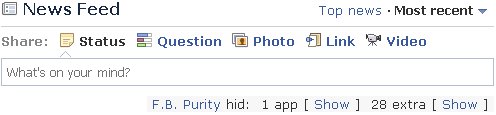
A new mini F.B. Purity info bar should be displayed just above the first post in the Newsfeed, like so:
The FBP Options Screen
The F.B. Purity Options screen, where you can edit your FBP settings and preferences, can be accessed by clicking the "F.B. Purity" link in the FBP Information Bar as illustrated in the screenshot above, you can also click the "FBP" link in the top navigation bar as shown in the screenshot below:

Please note if you have the new Facebook design without the blue bar at the top, the FBP button is now in the top right hand corner of the page.
FBP Hides all Adverts and Sponsored posts
By Default F.B. Purity hides all ads on facebook, so you dont need to change any settings to enable this. This option also hides the "Similar to" box that shows up when you like a post from a "fan page" in the newsfeed, or the "More like" box that pops up when you click on an external link in the newsfeed, it also hides the "Page Stories You May Like" box. If you want to turn the ad blocking feature off, you can "untick" the hide "Sponsored Box / Posts" option.
FBP Hides Newsfeed Posts From Unknown Games / Apps
The "1 app" text means that 1 Facebook Application message has been hidden, and if you are curious, you can it them by clicking the "Show" link next to it. When you choose to show the application messages, they will be displayed with a light red dotted line around them. Each application message, will also have an extra 2 buttons, beneath the "X" button, the "WL" (Whitelist) button and the "BA" (Block Application) button.
You can easily customise which applications are hidden and which are not, for more info, see the F.B. Purity Application Whitelist Guide
If you prefer the application messages not to be hidden, you can turn off the application message filter. To do this, just untick the "Application Messages" checkbox on the FBP options screen
FBP now also lets you watch videos that show up in the Newsfeed without any interstitial ads, FBP adds a red link titled "Watch Vid (No Ads)" just above videos in the Newsfeed that it has detected to contain an interstitial ad. If you click that link, the video will open in a new tab, and you will be able to watch it without any interstitial ads.
FBP Lets you easily block Games and Applications
You can easily block Facebook Games / Applications using the "BA" link that gets added the left hand side of application messages. Clicking the link gives you the option to block all the Applications that are currently being displayed on the page in your newstream, if you choose not to block all the currently displayed Apps, you are then given the option to only "Block" the application that you clicked on. When an application is blocked you will no longer see any messages from it, you will not be invited to add the app, and the App will not be able to read any of your profile data. To unblock an application, you need to go to your Facebook Privacy Settings, then select "Edit block list" where the list of applications you have blocked will be listed, and you can click the "Unblock" links to unblock themm.
FBP Hides Extra(aneous) Messages
The "28 extra" text means that 28 "Extra" messages have been hidden, and if you are curious to see them, you can click the "Show" link next to it. Extra messages are machine generated messages like "x became friends with y", "x likes y" (the "like" hiding options will also hide the equivalent "reacted to" posts), "x joined group y", "x is attending event y", for example. When you choose to show the extra messages, they will be displayed with a light blue dotted line around them.
You can easily customize which "Extra messages" (such as likes and comments etc) are shown and which are hidden, using F.B. Purity's wide range of built in filtersFor more information, see the F.B. Purity Extras Guide
Filter out posts from the newsfeed that contain specific words / phrases
If you put the keywords / phrases that you dont want to see in the newsfeed into the "Text Filter" box, F.B. Purity will filter out posts containing those words. See the "Text Filter" help page for more info.
Filter out posts from the newsfeed based on the content of the images (i.e. cat photos/ selfies / memes / baby photos etc)
If you click the "Photo Posts" heading on the FBP options screen, towards the bottom of the list of options you will see the Image Content Filter options, that let you hide image posts from the newsfeed, if they contain the subjects you choose. Please note this sytem is based on Facebook's "artificial intelligence" system that automatically classifies images, so it may not always give 100% correct results. Also note that the system does not currently detect specific people such as politicians or celebrities etc, if you want to filter posts about those types of people, you should use the previously mentioned "Text Filter" instead.
FBP lets you force Facebook to automatically switch you to the "Most Recent" Newsfeed setting
Although Facebook now has an option to let you choose what sort mode you would like your newsfeed sorted in, it is notorious for "Forgetting" what option you have chosen. F.B. Purity has an option to let you force Facebook's Newsfeed to stay on the "Most Recent" setting. This option is under the "Further Options" heading. Facebook has recently decided to turn old posts that have received new likes or comments into "new" posts, that means even if you are on the "Most Recent" feed you will still see posts that are not in chronological order, (these posts usually have the "commented on this" or "liked this" header) to fix this issue, you also need to tick the hide "Liked this" and hide "Commented on this" options, once that is done, the Most Recent feed, should be in proper chronological order, though Facebook has now changed this again and seems to still show posts out of order even after these options have been selected.
Deleted Friend Alerts
FBP keeps track of your friends list for you and will display on screen alerts if any of your friends unfriend / delete you. If you dismiss the popup, but want to see it again, just press the "F" key, and the Deleted Friends Alert will be re-displayed, alternatively, if you check the left column of your newsfeed, there will be a "deleted friends alert" link, highlighted with a pink background, clicking the link will also re-play the alert.
N.B. If you don't like the Deleted Friends Alerts feature, you can turn it off via the FBP options screen.
Hide Facebook Memories (aka On This Day) from the Newsfeed
FBP has 2 options for hiding Facebook Memories posts, one for hiding "Your Memories" and one for hiding "Shared Memories", which are Memories others have shared.
Friends Whitelist (**This feature is currently broken**)
If you have certain friends whose posts you dont want FBP to filter out, you can add them to the Friends Whitelist, read more about the friends whitelist here
F.B. Purity lets you Hide the Newsfeed (the middle column of news) completely
To hide the Facebook Newsfeed, just tick the Hide "The Whole Newsfeed" option under the "Various Post Types" heading on the FBP options screen.
How to hide offline friends in chat
To hide the offline friends in chat, you have 2 options, listed under the "Chat Options" heading. 1) Hide "Offline Friends", this option hides offline friends. 2) Hide "Offline and Mobile Friends", this option hides both offline friends and those on mobile devices.
FBP Lets you hide the Right Hand Column Links / Boxes
F.B. Purity gives options to hide the following boxes on the right hand side of your facebook homepage: Events Box, Sponsored Box (Ads), Suggestions (aka People You May Know, Find Friends etc) Box, Birthdays, Get Connected (aka Find More Friends) Box, Poke Box, Watchlist, Today's Games, Stories, Marketplace / Still available in Marketplace, Happening Now etc
FBP Lets you hide the Links in the left Hand Side Column
F.B. Purity ives you the options to hide all those links on the left hand column that you are not interested in such as Page Feed, Games Feed, Like Pages, Events, App Center, Advert Manager, Pokes, Music, Places Editor etc etc
FBP lets you stop Facebook from automatically suggesting Tags / replacing what you are typing with Tagged People/Pages when writing comments / status messages?
To do this, just tick the Hide "Auto Tag Suggestions" option. With the option enabled, if you do wish to tag someone, type the "@" symbol, and it temporarily allows you to tag again. You may need to type a space after you finish typing your final word of your comment or status to stop Facebook automatically replacing your final word with a tag.
FBP Lets You Customise your Facebook
You can choose any of the 650 fonts in the Google Web Fonts selector under the "Font, Colour and Design" heading of the FBP options screen. 2 cool WebFonts that are worth trying out are "Federo" and "Cherry Swash". To change the font size, just alter the number in the "Font Size" field in the options screen to your desired size and tick the "Set" checkbox, then click "Save and Close"
There are 2 ways to change the background image for Facebook, firstly, FBP can now add a "Set as Background" link on image pages, clicking it will set that image as your background image. By default the "Set as Background" link does not show for images, but you can turn it on by ticking the option for it under the "Font, Colour and Style" heading. The other way to do it is to open the FBP options screen, click the "Font, Colour and Design" heading, then paste a URL to an online image into the background image box, tick the "set" box next to it, then click save and close. The image needs be hosted on a secure server i.e the URL should start with https:// and should point directly at the image, so it should usually include the filename extension (e.g .jpg or .png ) For example: https://somesite.com/folder/someimage.jpg
F.B. Purity has an option to turn off Facebook's custom colour backgrounds for statuses, and it also reduces the font size of those statuses, the option is called " Normalize Colored / Big Font Statuses" and is located under the "Font, Color & Design" heading of the FBP options screen.
You can customize the Reaction Images, FBP lets you change the Reaction Images to anything you like, you can even use animated Reaction images, see the Customize Facebook Reaction Images Page for more info. Or if you don't like Facebook Reactions you can turn off the Reactions Bar.
More advanced users might be interested in FBP's Custom CSS option, that gives you a greater degree of control as to how your Facebook pages are displayed, by letting you add custom instructions for the web browser on how to display certain element of the page. With this, for instance you can change the actual font used on the site, or change the colour of the font or the background colour of the page, and a whole lot more! For more information, please see the F.B. Purity Custom CSS Guide.
Want to see a full list of your de-activated friends?
Go to the your Friends page, then click the "Show Deactivated Friends" link at the top of the page
Having problems with F.B. Purity?
If you have any problems getting F.B. Purity to work or any questions about it, please first of all read the Help / FAQ (Frequently Asked Questions) page, as the solution to your problem or answer to your question will most probably be in there.
Do you Want to Disable Autoplay Videos?
Click here for instructions on how to disable autoplay videos on Facebook
How to hide Reels and Short Videos on Facebook
FBP has an option to hide the Reels and Short Videos posts from showing in the Newsfeed. (The option is located under the "Video Posts" heading on the FBP options screen)
Do you want to Turn off the People You May Know Box?
How to Remove / Hide the People You May Know box on FB A guide on how to turn off "People You May Know" on Facebook
Support F.B. Purity - Show Your Appreciation
If you like the F.B. Purity, please make a donation to show your appreciation for all the hard work i have put into developing this and keeping it running.
N.B "Facebook" is a registered trademark of Facebook Inc. This site and script are neither endorsed by or affiliated with Facebook.